

Fixing & reassigning surveys
When a survey or feedback submission reaches ciopulse with invalid data, it’s held to one side until you correct it — and you’re alerted so you can act. This page explains why that happens, how to fix it, and how to reassign a survey that’s recorded correctly but belongs with a different support group or segment.
Why a survey ends up “in error”
Section titled “Why a survey ends up “in error””Surveys carry their reporting details — support group, segment, ticket reference — in the parameters of the survey URL your ITSM sends. If one of those values is missing or doesn’t match something set up in your Portal, ciopulse can’t file the response, so it flags it and alerts both the Master and Supporting Administrators by email and SMS.
The errors that trigger an alert are:
- Transactional survey — invalid or missing Support Group Code or Segment Code, or a missing Ticket ID.
- CCS submission — invalid or missing Support Group Code.
- Relationship survey — invalid or missing Relationship Survey Code, Segment 1 Code, or Segment 2 Code.
While a survey is in error it does not appear on any display, report or dashboard, and it does not count towards your Net Promoter Score. Service recovery alerts aren’t raised for it either — so if it was a low score, the relevant Support Lead won’t have been notified. Once fixed, the response is included as normal.
Two ways to fix an invalid survey
Section titled “Two ways to fix an invalid survey”How you fix it depends on what went wrong:
-
The code in the URL was correct, but doesn’t exist in the Portal yet. Create the missing item using Manage Support Groups, Manage Customer Segments or Manage Relationship Surveys. Once it exists, the survey that was “in error” fixes itself automatically within an hour — no further action needed.
-
The URL contained a wrong or missing value (for example, a mistyped Support Group Code or no Ticket ID). Use the Fix Data Errors functions to supply the correct information, as described below.
Using the Fix Data Errors functions
Section titled “Using the Fix Data Errors functions”- Log in to the Portal. When anything needs fixing, an Action Required banner appears on your dashboard.
- Open the Fix Data Errors area and choose the listening post you need to correct: Transactional Survey Errors, CCS Feedback Errors or Relationship Survey Errors. If you’re not sure which, click each to see if any errors are listed.
- In the list, click the pencil (edit) icon on the row you want to fix — or the delete icon to discard the response.
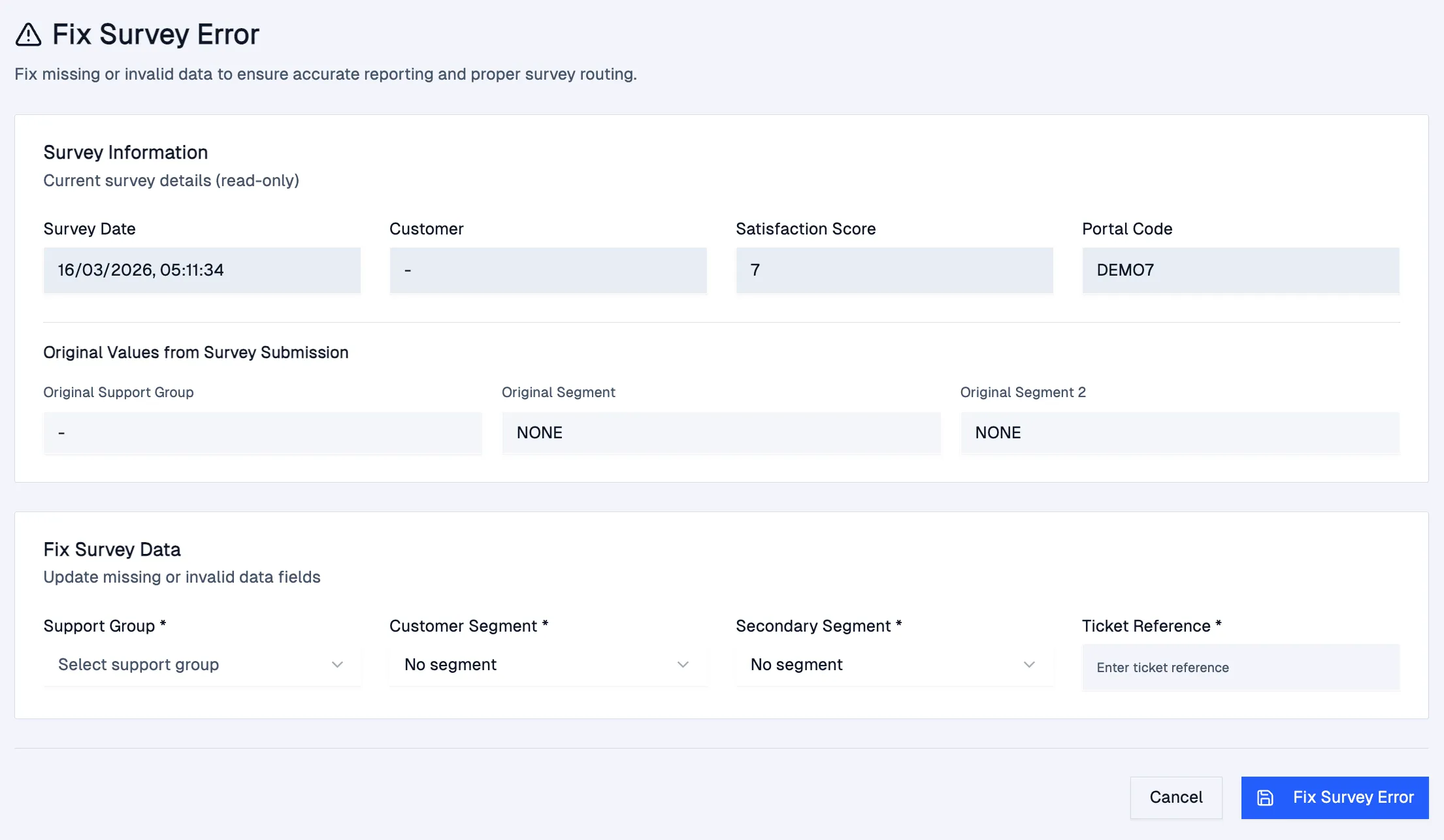
- Select the correct value(s) from the drop-down(s) and click Update and go back to list. Only the fields that were actually invalid appear on the edit screen, so you’ll only ever be asked to correct what’s needed.
- Once saved, the row drops off the error list and the response starts contributing to your reporting.
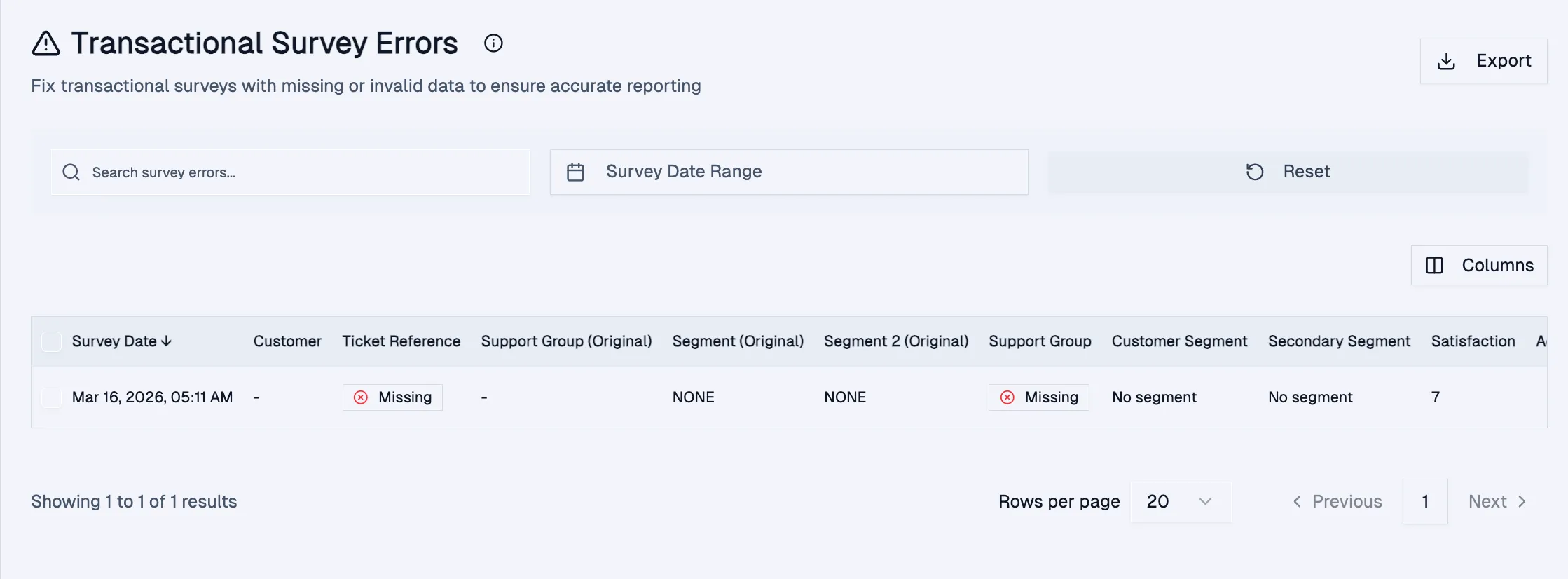
The error list shows each flagged survey and exactly what’s wrong — in this example, the Ticket Reference and Support Group are marked Missing:
Clicking the edit icon opens the Fix Survey Error screen. The top shows the current survey details as read-only; below, you only see the fields that need correcting:
What each list lets you correct:
- Transactional surveys — Support Group, Customer Segment, Ticket.
- CCS feedback — Support Group.
- Relationship surveys — Relationship Survey, Customer Segment 1, Customer Segment 2.
Reassigning a survey
Section titled “Reassigning a survey”Use Reassign Transactional Surveys when a survey was recorded correctly but you want to move it — for example, to a different Support Group, Agent, Segment or Customer.
- In the Fix Data Errors area, open Reassign Transactional Surveys. This shows your reassignment history — an audit log of all past reassignments.
- Click Reassign Surveys.
- Complete the form:
- Tickets (required) — one or more ticket numbers, comma-separated.
- Reason (required) — a short note explaining why you’re reassigning.
- At least one Reassign to… field — Support Group, Agent, Segment 1, Segment 2 or Customer.
- Save. The reassignment is recorded in the history, along with the date, the values you changed, your reason and your administrator email. Use Export to download the full history (with untruncated Tickets and Reason fields) to Excel.
Deleting a survey
Section titled “Deleting a survey”There are two different situations, and they’re handled differently:
- A survey in the error list — you can delete it yourself using the delete icon in the relevant Fix Data Errors list (as above). This is for responses that never filed correctly.
- A valid, already-recorded survey — this isn’t a self-service action in the Portal. To have a genuine response removed, email support@cio-pulse.com with the ticket number and a short reason. We delete it for you, and every deletion is recorded with its reason in an audit log.
Once a valid survey is deleted it no longer counts toward your Net Promoter Score, and current NPS figures recalculate accordingly. As with reassignments, historical monthly management reports are point-in-time snapshots and aren’t retrospectively changed.
Still need help? Email support@cio-pulse.com.